Downloading watchOS software to your Apple Watch is a tremendously slow process. But did you know you can make your Apple Watch update faster?
In this tutorial, we show you how to dramatically speed up the utterly slow process of sending the watchOS installer files to your Apple Watch.
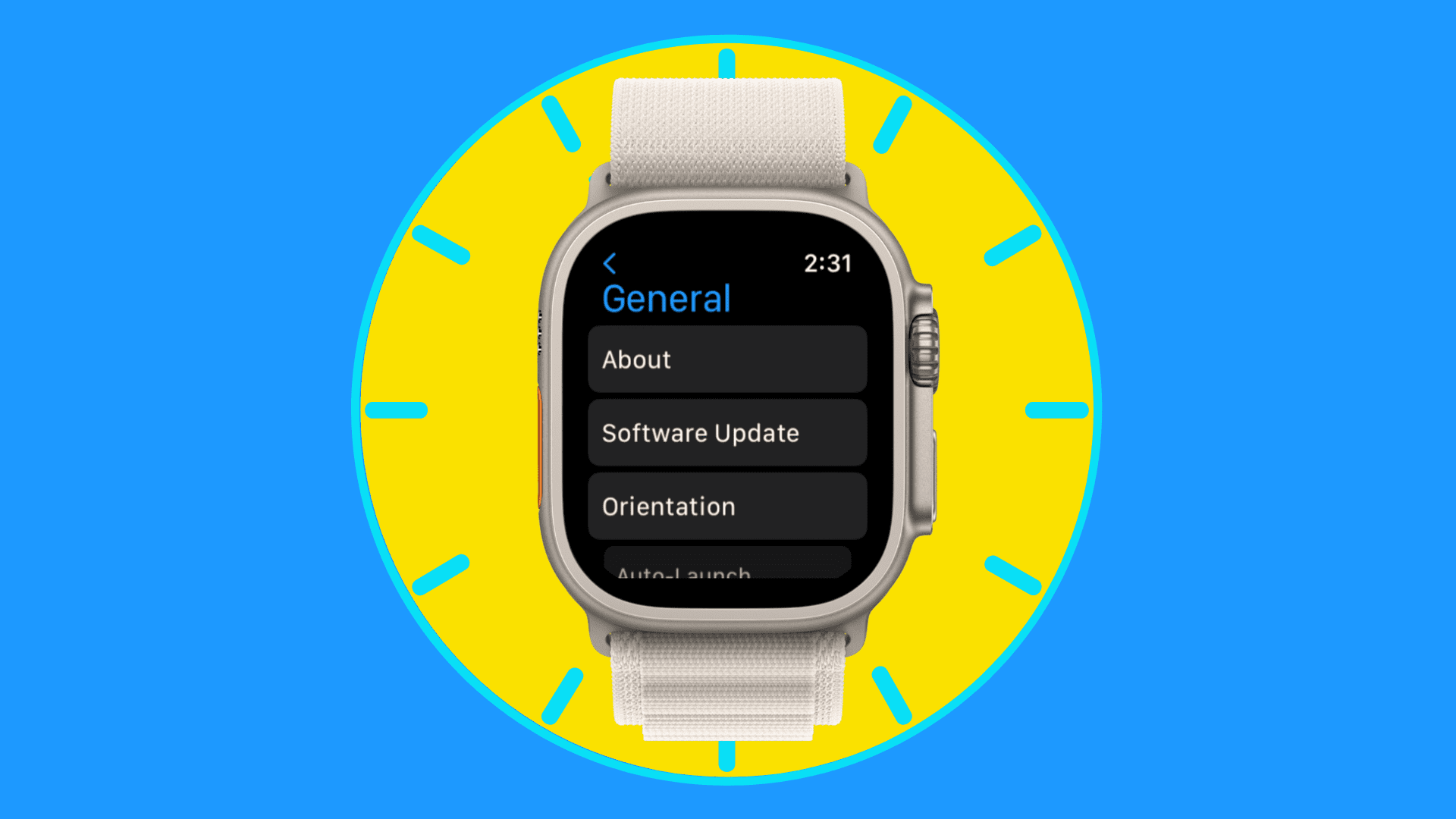
About speeding up Apple Watch updates
The exact amount of time needed to send the installer to your wrist depends on the following:
- the size of the watchOS software update you’re installing
- the model of your Apple Watch (newer models utilize better processors that handle common operations faster)
- network interference and the many factors that influence wireless data transfer.
I will let you in on a secret: sliding the Bluetooth toggle to the OFF position in Settings > Bluetooth on your iPhone or Apple Watch will make your Apple Watch software updates dramatically faster.
But why does turning Bluetooth off accelerate the update process?
This is because Apple Watch defaults to prioritizing Bluetooth over Wi-Fi whenever possible in order to conserve as much power as possible. While Bluetooth requires less power than Wi-Fi, the protocol is significantly slower for data transfer than most Wi-Fi standards.
Disabling Bluetooth on your paired iPhone or Watch at the right time will force your Apple Watch to connect to your iPhone via the faster Wi-Fi protocol.
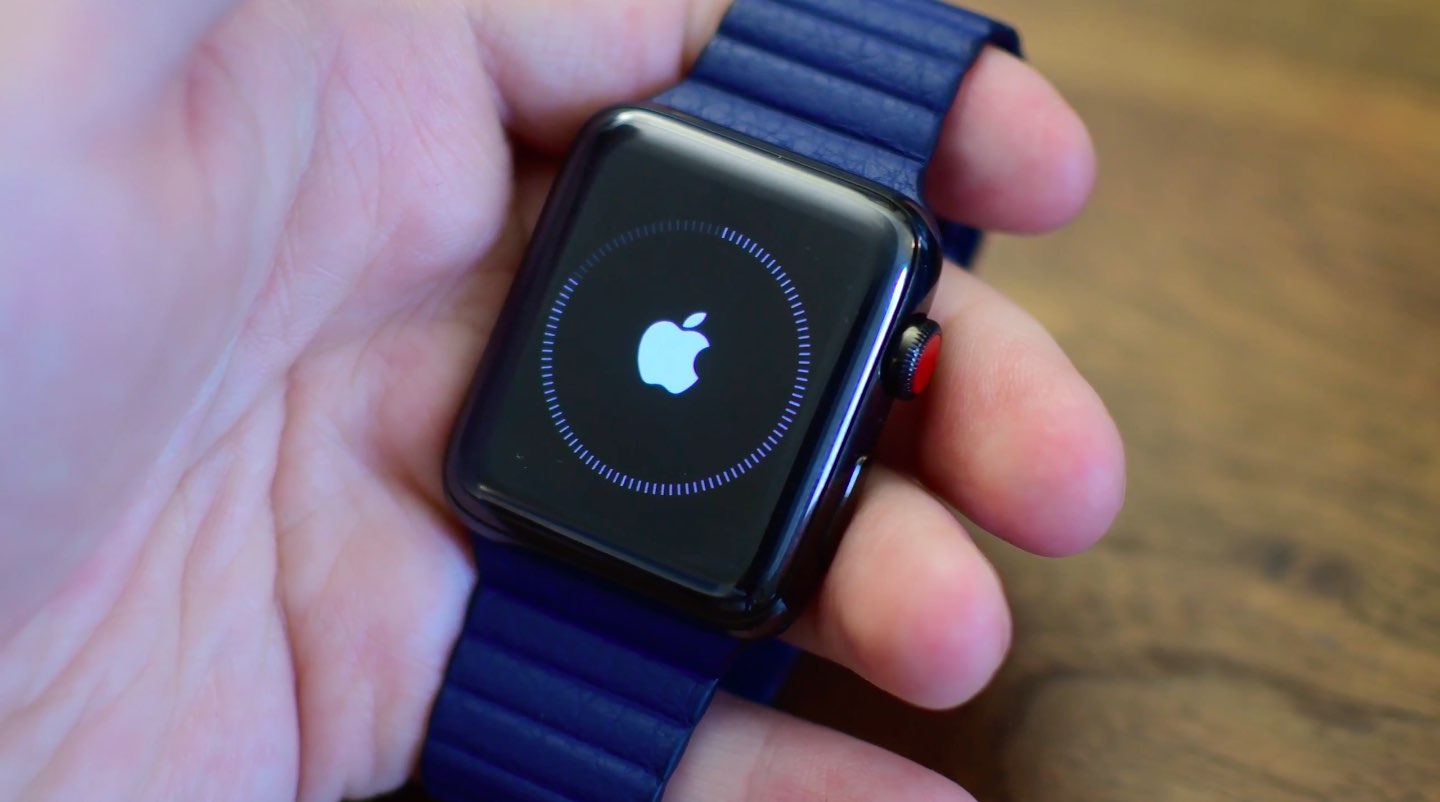
Updating your watch happens through the companion Watch app on your paired iPhone.
Your phone downloads the latest watchOS update and sends the installer wirelessly to your wrist. Sending that much data over Bluetooth is insane. watchOS updates typically weigh anywhere from a few hundred megabytes to more than a couple of gigabytes.
Making the weakest link—sending the installer to your watch—faster by temporarily disabling Bluetooth shaves off a significant amount of time from the update process.
However, you must shut down Bluetooth at a specific moment during the update process.
As I said, your iPhone’s Watch app is the one handling the Apple Watch software updates. Among other things, it automatically retrieves the latest watchOS software from Apple’s servers as soon as it becomes available to download.
The Watch app then sends the downloaded installer file to your wrist-worn device over the air. The watch takes it from there, unpacking the installer and applying the update.
Note: If your Apple Watch has watchOS 6 or later, you can also download updates directly to it via Wi-Fi without needing your iPhone.
How to update your Apple Watch faster
There are two ways to do that.
- The first method involves using just your Apple Watch to download and install the latest watchOS update (but it may not work at all times, more on that later).
- And the second method is to have your iPhone transfer the watchOS update to Apple Watch over the faster Wi-Fi protocol instead of the slower Bluetooth connection.
Update directly from your watch
This method works when you’re updating within the same major OS, like going from watchOS 27 to watchOS 27.1.
1) Go to Apple Watch Settings > Bluetooth and turn it off to disconnect it from your iPhone. Then, go to your iPhone Settings > Wi-Fi and turn it off.
2) Next, open watchOS Control Center and make sure your watch is connected to Wi-Fi (you’ll see a tiny blue Wi-Fi icon at the top).

3) Head to Apple Watch Settings > General > Software Update and wait for it to load the new update.
4) Tap the Download and Install button. If the update is already downloaded, tap the Install button instead.

Update your Apple Watch faster by turning off Bluetooth
You’ll need to accept the terms and conditions on your iPhone when updating from one major version to another (like watchOS 26 to watchOS 27) or if Apple has made changes to their terms & conditions. Therefore, the above method may not always work, as it will prompt you to accept the terms and conditions on your iPhone. And then, when you start the new watchOS update, it will happen slowly, unless you follow the steps below.
1) Make sure Bluetooth and Wi-Fi are enabled on both your iPhone and Apple Watch, and the devices are nearby.
2) Go to the iOS Watch app > General > Software Update and wait for the new update to show. Then, tap Download and Install, and accept any new terms and conditions.

3) Wait until you see “Estimating time remaining…” in the Watch app Software Update screen.

4) Then, turn off Bluetooth from iPhone Settings (don’t use iOS Control Center) or Apple Watch Settings.
5) Bluetooth is now fully disabled on your iPhone. Switch to the Watch app and navigate to General > Software Update. A prompt may pop up, advising you to reconnect to your watch. Tap Cancel to continue.
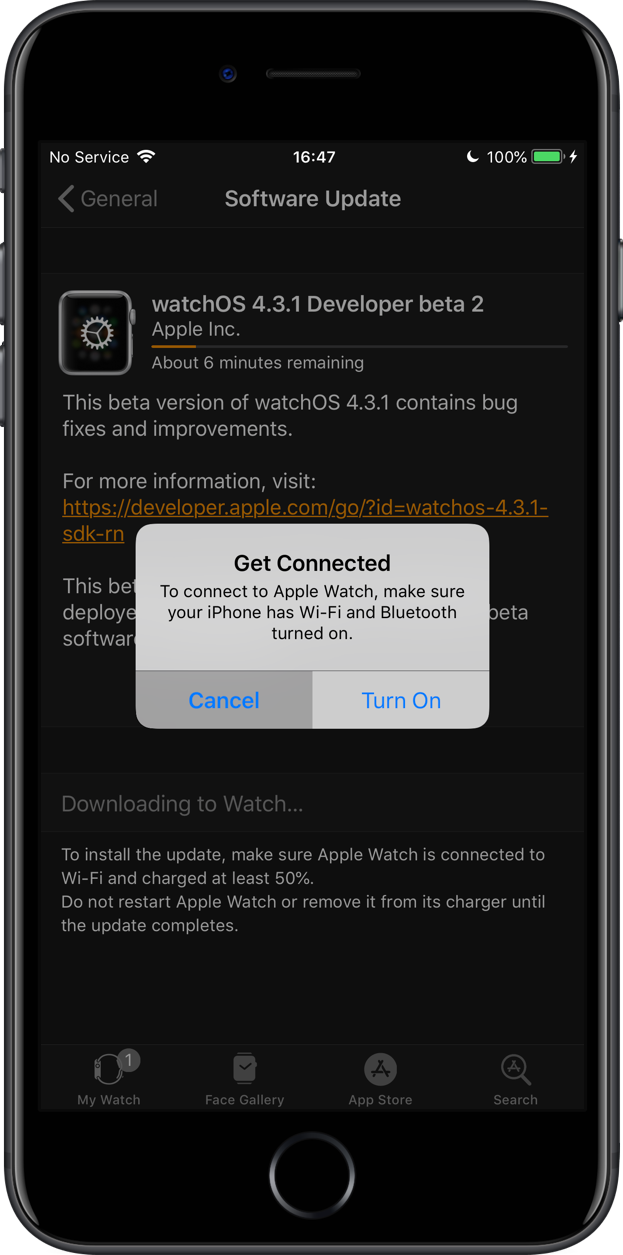
Seeing that Bluetooth is unavailable, the Watch app falls back to your home Wi-Fi network as long as both your watch and iPhone have Wi-Fi enabled in Settings and are connected to the same local network. The estimated time remaining should drop significantly as a direct result of using the much faster Wi-Fi protocol than the slow, unreliable Bluetooth networking. Apple enforces Bluetooth on the Watch because Wi-Fi radios consume more power.
6) If the update does not go through, turn off both Wi-Fi and Bluetooth on your iPhone. Then, make sure your Apple Watch is connected to Wi-Fi and download the new watchOS update from Apple Watch Settings > General > Software Update. Since you have already accepted the new terms and conditions, you should be able to proceed with the update without issue.

Check out our hands-on video walkthrough of the whole process.
I know shutting down Bluetooth to make the software update of your Apple Watch faster feels like a cheap trick.
In fact, many folks know about the correlation between Bluetooth throughput and the watchOS update speed. But, trust me: once you try this simple trick, you’ll never install Apple Watch software updates over Bluetooth again.
Check out next: Unable to install update on Apple Watch? Here’s how to fix it