Use the Optimize Storage feature to limit how much space downloaded Apple Music songs take up on your iPhone and iPad.
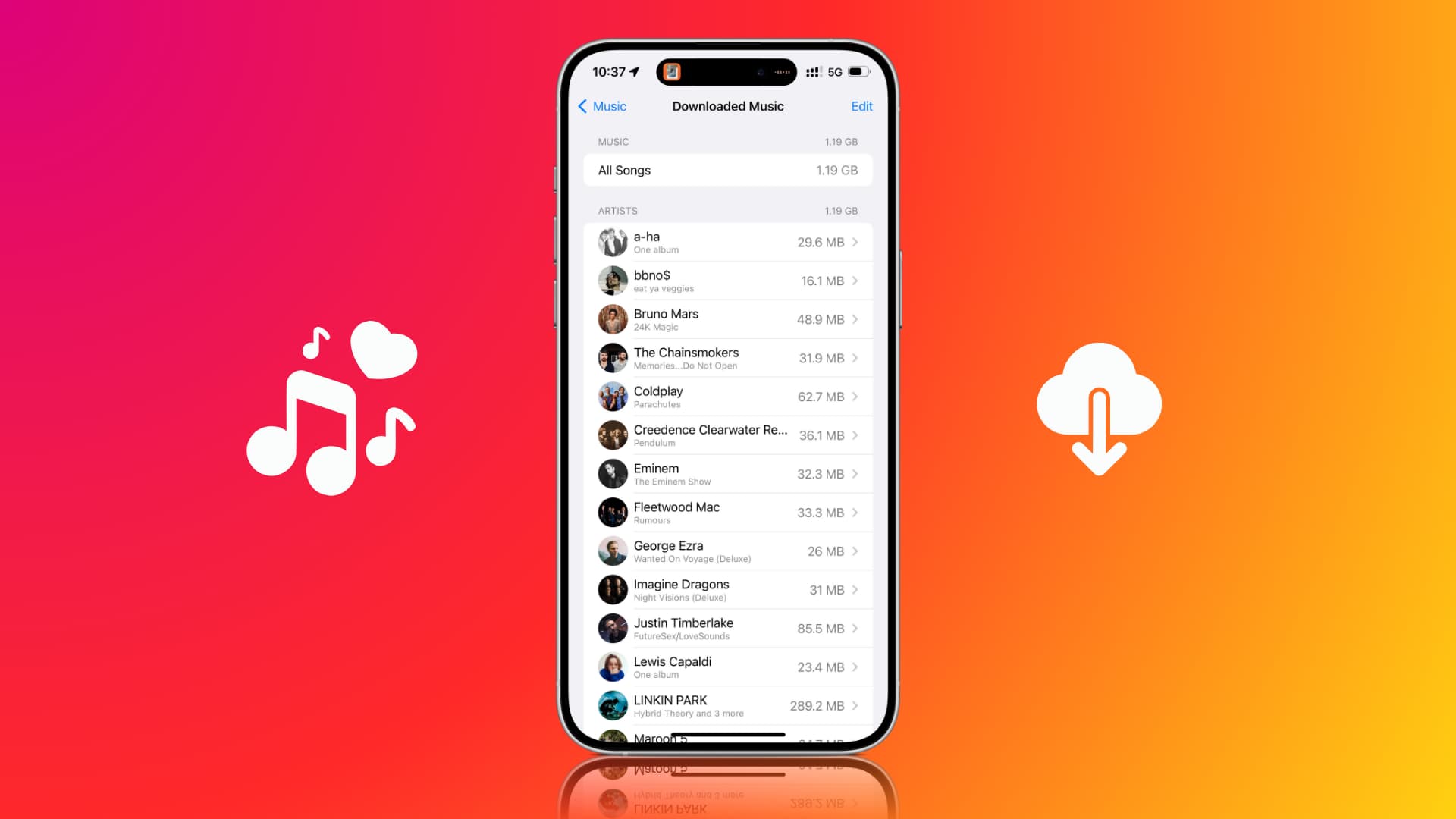
What is Optimize Storage in iOS Music settings
The Optimize Storage option lets you set a minimum storage boundary for downloaded music. After that, whenever your device gets low on local storage, your iPhone will automatically remove the offline tracks that you have not listened to in a while, but it will keep the minimum number of downloaded songs you have asked it to keep.
For instance, imagine I set the minimum storage limit for Apple Music to 4 GB and then download 20 GB of offline songs. Now, if my iPhone gets low on storage, iOS will automatically delete the offline copies of the songs I have not played recently, but it will still keep at least 4 GB of offline songs.
It’s a great feature that ensures you don’t run out of offline songs on your iPhone while keeping your overall storage free for other tasks like downloading apps or taking photos.
Turn on optimize music storage on iPhone or iPad
- Open iOS Settings, tap Apps from the bottom, and select Music.
- Tap Optimize Storage under the Downloads heading.
- Turn on the Optimize Storage switch.
- Now set a minimum storage limit to ensure you always have some downloaded music on your phone.
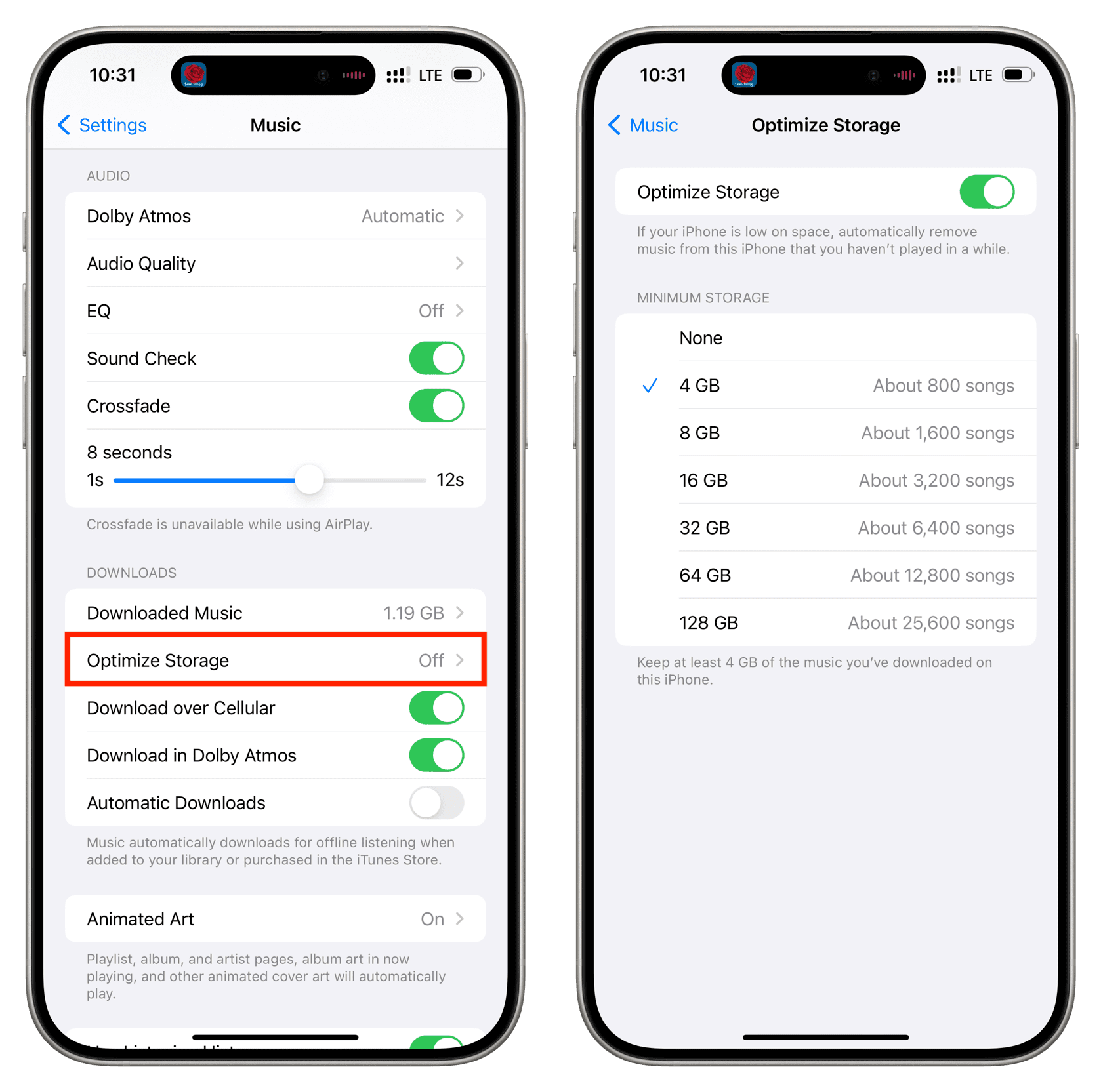
The options here vary depending on your iPhone’s capacity. On my 256 GB Pro Max model, the choices for minimum storage are 4 GB, 8 GB, 16 GB, 32 GB, 64 GB, and 128 GB.
Dedicating at least 4 gigabytes of storage lets you keep about 800 high-quality offline tracks on the device. By comparison, 128 gigabytes of dedicated music storage lets you keep about 25,600 downloaded songs on the device!
The lower the minimum storage you choose, the more usable storage space you’ll have for apps, photos, and other things. If you’d rather have iOS use whatever amount of storage space is available for keeping offline music, choose None instead.
Turn off Optimize Storage on iPhone
Maybe some time ago, you were worried about the amount of space your music was taking up on your iPhone. So, you enabled the Optimize Storage option. This allowed iOS to automatically remove downloaded songs that you haven’t listened to in a while, thus freeing up storage space.
But now you find yourself with more storage space on your iPhone than before, or maybe you’ve purchased a new iPhone with more space. So, you want to stop iOS from removing songs and do it yourself. In that case, you can turn off this feature from Settings > Apps > Music > Optimize Storage.
After this, you can delete downloaded songs manually.
Tip: Turn off automatic downloads
If you’ve disabled optimized storage, you can stop your iPhone or iPad from automatically downloading music for offline listening whenever you add songs, albums, and playlists to your library. To do that, go to Settings > Apps > Music and turn off the Automatic Downloads switch. This will ensure you don’t fill up your local storage with songs you just added to your library but did not want to save offline in the first place.
Check out next: