Go through these 11 solutions if your iPhone or iPad fails to download the latest iOS 27 or iPadOS 27 developer beta update, or if it’s stuck on the “preparing update” screen.

It’s easy to download and install a new beta or non-beta version of iOS on your iPhone or iPad. However, the iOS update may get stuck in rare circumstances and fail to download, prepare, and install. Some issues you may face are:
- not going past the “Update Requested” or “requesting the update” screen
- stuck on the “preparing update” screen
- verifying the update for a very long time
- stagnant on the downloading screen
If you’re in this situation, don’t panic. The solutions below will fix that.
1. Wait for a while
If you’re trying to download the new iOS version, such as iOS 27, immediately after Apple’s announcement, chances are the servers are overloaded as many people are trying to get their hands on it.
Secondly, the update is not sent at the same time in all countries, regions, and time zones.
So, just wait for a couple of hours, and you should see the new update. Waiting a while will also help if the update starts and then gets stuck halfway.
2. Check your Internet connection
Run a quick speed test to ensure your iPhone is connected to a working Wi-Fi network. If your internet speed is 15 Mbps or higher, it’s considered reasonably good. If you need help, we’ve dedicated guides to fix Wi-Fi connection issues and slow speeds. Note that if you have a fast 5G or LTE connection and enough data allowance, you can also download iOS updates over cellular data.
3. Turn off the VPN
If you’re using a VPN, turn it off. You can do this by opening the VPN app or by going to iOS Settings.
4. Restart your Wi-Fi router or switch to another network
In case the problem continues, don’t forget to restart your Wi-Fi router. This is a handy solution that helps in such situations. Additionally, switching to a different Wi-Fi network or using Personal Hotspot may resolve the issue. No kidding. Give it a try!
5. Quit and reopen the Settings app
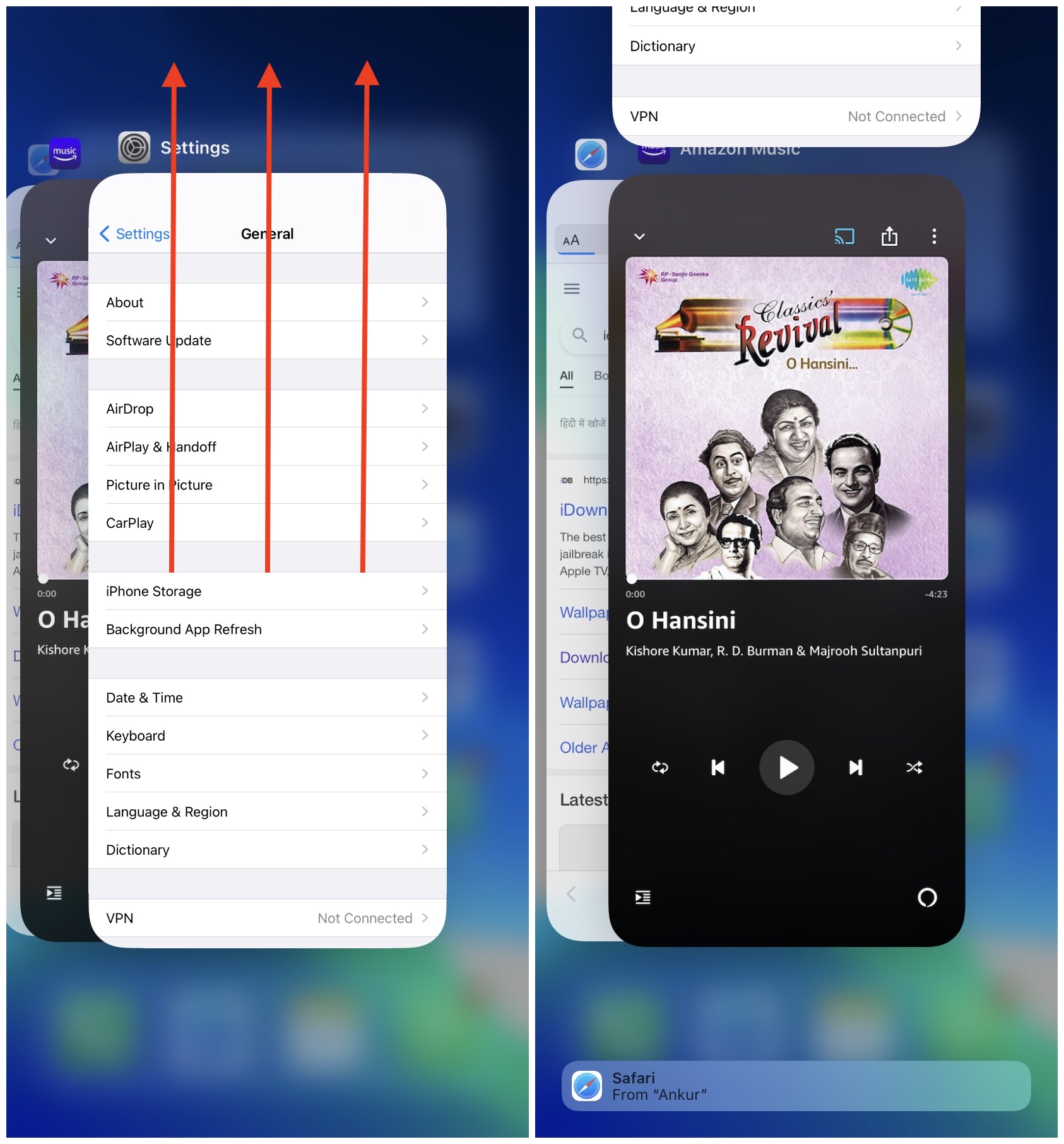
Swipe up from the bottom of the screen or quickly double-press the Home button to access the App Switcher. From here, drag the Settings app card all the way up to force close it. After a few seconds, open iPhone Settings > General > Software Update and see if it helps fix the stuck iOS 27 update.
6. Restart your iPhone
Turn off your iPhone, wait for a minute, and turn it back on. After your device restarts, retry installing iOS 27. Hopefully, this simple step should have fixed the iOS stuck on preparing update or verifying update issues. In case it didn’t, please continue reading.
7. Close other apps and free space on iPhone
If you’re using an older device (like iPhone 11), consider closing other apps except for Settings. You can do this by opening the App Switchers and dragging the app cards all the way up.
Next, make sure your device has enough free storage. To be clear, if you don’t have the minimum required amount of free space, you can’t even start the iOS 27 download in the first place. But still, when you’re stuck on the preparing update screen, consider getting rid of unnecessary apps, photos, music, and videos to make a bit more room.
8. Check Apple System Status and wait for a while
Visit Apple’s System Status page and ensure you see a green dot or the word “Available” for App Store, iCloud Account & Sign In, etc. In rare cases, if it isn’t green, you’ll have to wait until Apple fixes it.
Additionally, it’s normal for your iPhone to be stuck during a software update for a short period, such as 15 minutes or so. Please wait a bit longer before seeking solutions.
9. Delete the downloaded iOS update file
If none of the above solutions work, and your iPhone is still stuck on ‘Preparing the update,’ go to the Settings app > General > iPhone Storage. If you see the iOS update file here, tap it and delete it from the next screen.
Now, restart your iPhone and head back to Settings > General > Software Update. After that, try to download the update again.
10. Reset network settings
A few months ago, an iOS update became stuck, and none of the solutions mentioned above were effective. In that situation, resetting the network settings helped, and I was finally able to download the iOS update. To do this, open iPhone Settings > General > Transfer or Reset iPhone > Reset > Reset Network Settings.
This will not delete personal data, such as apps, music, photos, and more. However, it will reset all network settings, including Wi-Fi networks, Bluetooth devices, and VPN.
Once the reset process is complete, connect to Wi-Fi and attempt to download the update. It should work perfectly now.
11. Reset all settings
If nothing helps and you’re still looking, consider resetting all settings. If this, too, doesn’t work out, you can use your computer to download, prepare, and install the iOS update.